Shopping Cart

How to upgrade the firmware for my Sunba Eco Series IP Camera?

  FIRMWARE UPDATE PRECAUTIONS 1.Though upgrading firmware is a regular routine, there is always a certain level of risks associated with the upgrade that in worst case could cripple the Sunba IP camera. Therefore, if you are satisfied with the current performance of the camera, it is not required for you to perform the upgrade. 2.Ensure the camera is well-powered during the firmware upgrade process. Any forms of power outage during the upgrade may damage the lens module. Keep the device powered until done!  3.To ensure the firmware upgrade is complete, see if you are able to log into the camera again and go to Device Config->Version and check to see if the build date […]

Enable Smartphone Motion Snapshot Push Alert

For customers having H.264 601-D20X or 405-D20X, please upgrade to the latest firmware before enabling this feature. Note this feature currently does not support video sent along with the notification, but only text & photo alerts. Photos will be stored in Sunba cloud server so you need to register a Sunba cloud account first via iSunba app. PART ONE: This step should be enabled already for most users with firmware version of at least 2018. First, please log into the camera via Internet Explorer or go to VMS, then go to Device Config, find and select Video Motion. Enable Video Motion and check Mobile reported: PART TWO:  Download iSunba app from App Store. Create an […]

Steps to add Sunba IP cameras to Hikvision PoE NVR

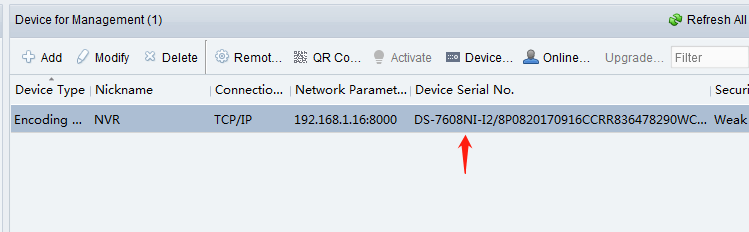
  Ultimate video guide below updated 2020/06: For Sunba Illuminati, it should be plug and play with Hikvision PoE NVR. Just make sure the NVR supports 802.3at and has sufficient power budget (at least 30W left) for the camera. For Sunba 601-D20X, 601-D25X, 405-D20X, 405-ECO, 406-D20X, FT-HD and 305-D4X. Please see the instruction below. The following instruction is made based on Hikvision DS-7608NI-I2, but should be applicable to all Hikvision PoE NVR. The following tutorial assumes that you are using the back switch of the NVR to power the camera. You need to first ensure that the PoE NVR is 802.3at (instead of 802.3af) with 25W as the maximum power output per port otherwise the […]

What is the RTSP stream URL for Sunba IP cameras?

The fundamental format of Sunba RTSP url is below: For SUNBA Lite Series camera: rtsp://IP:554/user={put your username here}&password={put your password here}&channel=1&stream=0.sdp?real_stream For example with the default network setting (RTSP port 554), username and password, the camera’s RTPS url would be as follows: rtsp://192.168.1.10:554/user=admin&password=&channel=1&stream=0.sdp?real_stream For SUNBA Performance Series camera: rtsp://{username}:{password}@{ip}:{port}/media/video1/2/3Corresponding to main stream/sub stream/three stream respectively; For example:rtsp://admin:[email protected]:554/media/video1, it means the main stream;rtsp://admin:[email protected]:554/media/video2, indicating sub-stream;rtsp://admin:[email protected]:554/media/video3, which means third stream; For SUNBA Illuminati, please use the following url: rtsp://[username]:[password]@[ip]:[port]/[codec]/[channel]/[subtype]/av_stream Below is an example of an IP camera with H.264, an IP of 192.168.1.10 and the default username and password. rtsp://admin:[email protected]:554/h264/ch1/main/av_stream where 554 is the default RTSP port h264 is the encoding format, and […]

What is the HTTP Snapshot URL for Sunba IP cameras?

  For Lite Series camera: The http command to take a snapshot of the camera is as follows: http://{IP}/webcapture.jpg?command=snap&channel=1&user={username}&password={password}For example, for an IP camera with IP 192.168.1.24 with username admin and no password, the url would be:http://192.168.1.24/webcapture.jpg?command=snap&channel=1&user=admin&password= For Performance Series camera: The http command to take a snapshot of the camera is as follows: http://{IP}:{http_port}/images/snapshot.jpgFor example: http://192.168.1.92:8585/images/snapshot.jpgThe first screenshot requires user login authorization. For Smart Series camera: The http command to take a snapshot of the camera is as follows:http://10.16.112.226/ISAPI/Custom/snapshot?authInfo=admin:abcd1234

I am unable to live stream on YouTube with Sunba Illuminati

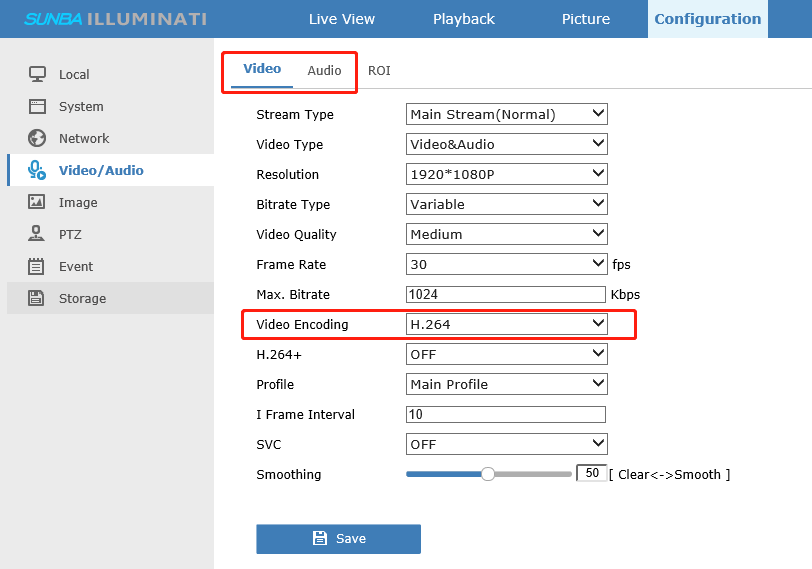
  The article is for model Sunba Illuminati. 1. Please first make sure the camera is set to the correct video format.  Only H.264 (video) and AAC (audio) is supported by YouTube (below is quoted from YouTube):  Incorrect stream formatYou need to make sure the video encode format is: H.264 and the audio encode format set to:AAC You can change the video and audio codec info in Configuration-Video/Audio. 2. Please change your camera’s network LAN IP from the DHCP to a static LAN IP and change the DNS server to 8.8.8.8 (Google DNS server). This is the most important setp. 3. Please make sure you input the correct RTMP url in the camera configuration page. For example: If […]

I am unable to get PTZ working in Blue Iris for Sunba Illuminati

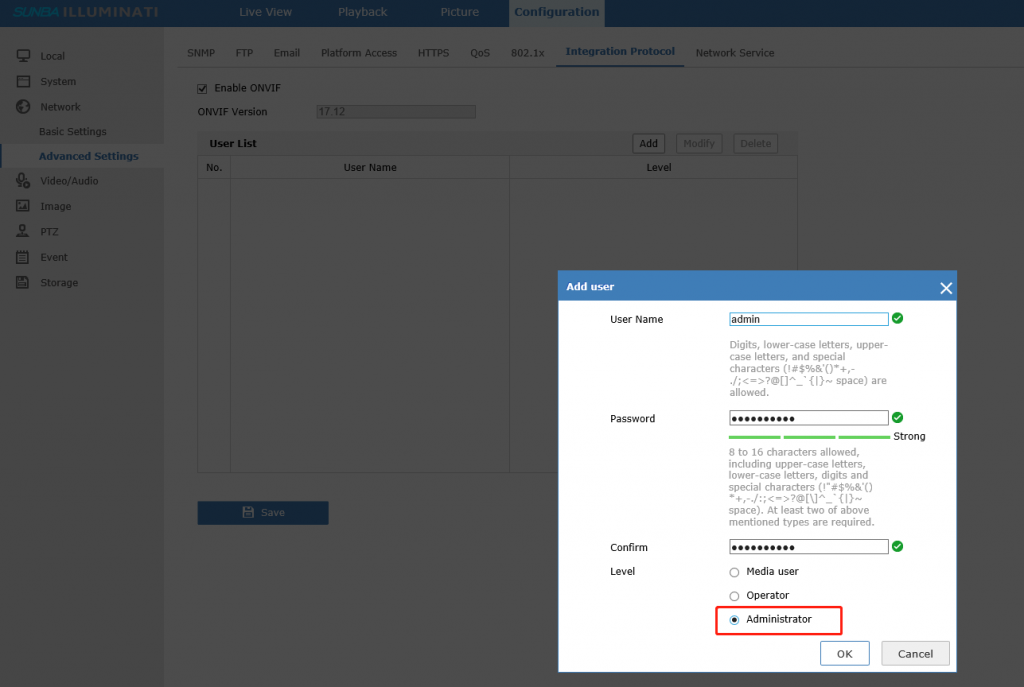
  The article is for model Sunba Illuminati. Firstly, please go to Configuration – Network – Advanced Setting – Integration Platform.​​Make sure ONVIF is enabled, and the added user is an ADMINISTRATOR instead of a MEDIA USER. Note ONVIF media user doesn’t have permission to control PTZ for the camera. Then, please follow this instruction to setup the camera in Blue Iris 5. We recommend that you delete the old entry and start from scratch to add the camera.

CGI HTTP Command for Sunba Illuminati

  The commands below is only for model Sunba Illuminati. Assuming we have a camera with IP as 10.16.112.226,username as admin and password as abcd1234, its corresponding http commands will be as follows: Pan Left:http://10.16.112.226/ISAPI/Custom/ptz/pan-left?authInfo=admin:abcd1234 Pan Right: http://10.16.112.226/ISAPI/Custom/ptz/pan-right?authInfo=admin:abcd1234 Tilt Up: http://10.16.112.226/ISAPI/Custom/ptz/tilt-up?authInfo=admin:abcd1234 Tilt Down: http://10.16.112.226/ISAPI/Custom/ptz/tilt-down?authInfo=admin:abcd1234 Zoom In: http://10.16.112.226/ISAPI/Custom/ptz/zoom-tele?authInfo=admin:abcd1234 Zoom Out: http://10.16.112.226/ISAPI/Custom/ptz/zoom-wide?authInfo=admin:abcd1234 Stop PTZ: http://10.16.112.226/ISAPI/Custom/ptz/stop?authInfo=admin:abcd1234 Call Preset 1: http://10.16.112.226/ISAPI/Custom/preset/1?authInfo=admin:abcd1234 Call Preset 2: http://10.16.112.226/ISAPI/Custom/preset/2?authInfo=admin:abcd1234 ……… Call Preset 255: http://10.16.112.226/ISAPI/Custom/preset/255?authInfo=admin:abcd1234 Take a Snapshot: http://10.16.112.226/ISAPI/Custom/snapshot?authInfo=admin:abcd1234 Reboot: http://10.16.112.226/ISAPI/Custom/reboot?authInfo=admin:abcd1234 All HTTP commands urls above will include username and password as required entries. We are unable to make http commands without credential.

How to convert recorded files for Illuminati into MP4?

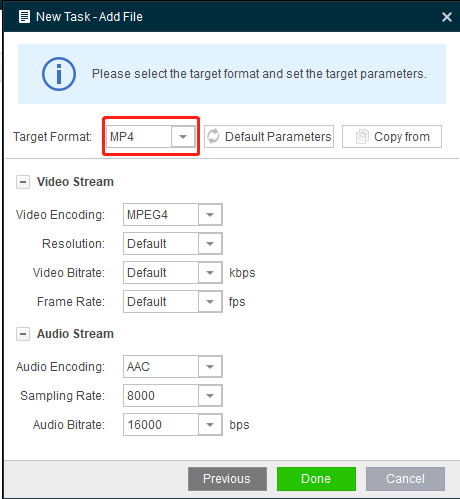
  The recorded files of illuminati is in MP2 that you can playback by using iFollow/Guarding Vision program. To convert it into the universal MP4 format, please download the FileConverter below: Format Converter_v4.0.1_EN Then after you add the file, please set to target format to MP4: Then click “Done” and “Start” to begin processing.

Local Inventory

Warehousing in the US, Europe and Japan

商品が到着後30日以内の返品

30日間返金保証

Market Warranty

Offered in the area of sales

安心・安全な決済方法

PayPal / MasterCard / Visa


jaJapanese